> ## Documentation Index
> Fetch the complete documentation index at: https://docs.adriel.com/llms.txt
> Use this file to discover all available pages before exploring further.
# Data blending
> How to combine a non-ad data source with marketing data inside a single widget.
Data blending lets a single widget pull from ad-platform connectors — for example, **Meta Ads**, **Google Ads**, or **LinkedIn Ads** — and from non-ad data sources — for example, **GA4**, **HubSpot**, **Shopify**, **BigQuery**, or **Google Sheets** — at the same time. The blend configuration tells the dashboard how to match rows from the non-ad source against the ad data so they appear side by side.
Blending only works inside a single widget — there is no cross-widget joining. See [Refresh strategies](/data-sources/how-data-works/refresh-strategies) for how each connector's data is stored before the blend step runs.
## When to use Data Conversion vs Data Blending
Both Data Blending and Data Conversion live on the **Data integration** tab of every eligible data source's settings page, behind the same on/off toggle. The two modes solve different problems — pick **Data Blending** to enrich existing ad rows with a complementary source, or [Data conversion](/data-sources/data-integration/data-conversion) to turn a non-ad source into a standalone ad channel:
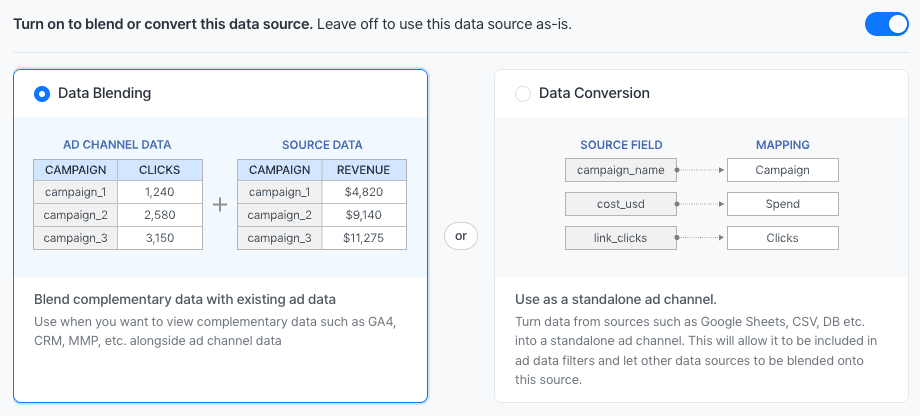 Typical Data Blending scenarios:
* Layering offline conversion or revenue data from a CRM onto ad performance
* Pulling cost data from an unsupported channel into a marketing widget
* Adding annotations, budgets, or targets stored in a spreadsheet
* Merging custom backend metrics with platform spend
## Open the blend settings
Blend settings live on the data source itself:
1. Open the **Connections** menu and pick the data source.
2. Open **Data source settings**.
3. Open the **Data integration** tab.
4. Toggle the integration on — the prompt reads *"Turn on to blend or convert this data source. Leave off to use this data source as-is."*
5. Pick **Data Blending** on the card group.
In earlier versions, blend settings could be edited from the pencil icon on a widget's settings panel. That pencil icon now redirects to the data source settings page — blend configuration lives there and only there, so the same configuration applies to every widget that uses the data source.
## Step 1: Date settings
Pick a date dimension from the non-ad source so the blend can filter by date. The format is detected automatically; enter it manually if detection fails.
If no date dimension is selected, the non-ad source ignores the date breakdown on the widget — all values flow through regardless of the date range. Use this only when the source is genuinely date-agnostic (targets, mappings, dictionaries).
## Step 2: Join type
| Aspect | Left Join | Full Join |
| --------------------------------------- | ------------------------------------- | ------------------------------------------------------- |
| Default | Yes | No |
| Widget dimension options | 10 standard marketing dimensions only | Standard + custom dimensions + other valid blend fields |
| Add a brand-new custom breakdown inline | Not allowed | Allowed |
| Channel-to-channel source mapping | Not allowed | Allowed |
| Rows added when conditions don't match | No | Yes |
Pick **Left Join** to enrich existing ad rows with extra columns. Pick **Full Join** when the non-ad source should also contribute rows that have no ad-data match.
## Step 3: Breakdown mappings
For each widget breakdown that needs a mapping, add a row. Each row pairs a target marketing field with a source field from the blended data.
Constraints worth knowing:
* Up to **15** widget-dimension rows per configuration.
* Each row supports up to **5** target-to-source pairs.
* A widget dimension can only appear in one row.
* The same target breakdown cannot be selected twice inside a single row.
* Custom architecture breakdowns are single-select per row.
### The "default" row
In addition to specific widget-dimension rows, a **default** row can be added. The dashboard first looks for a mapping that matches the widget's current dimension. If none is found, it falls back to the **default** row. Without a default and without a specific match, the row produces no result.
### Total mapping
The **Total Mapping** controls aggregation when the widget renders a single total instead of a breakdown — typically scorecards and single-value widgets. Pick the highest level that makes sense for the data (often **Ad account** or the source's primary ID column), or pick **No grouping** to aggregate the entire source.
Important: if **Total Mapping** is set to **No grouping** and the current widget dimension has no explicit mapping in the configuration, both **Left Join** and **Full Join** return an empty result. The **default** fallback is intentionally ignored in this case.
## Step 4: Metric mappings
For each metric the widget should compute, map the non-ad source field to the marketing metric. Multiple metrics can sum across both sources (for example, **Ad Spend** from Google Ads plus **Ad Spend** from a blended CSV).
A field that already appears as a mapping condition in Step 3 does not need to be re-mapped here for filtering to work.
## Step 5: Save
Click **Save**. The data source is now blended and can be added to any widget alongside ad data sources.
## Automatic defaults
Several connectors ship with default blend settings already applied at creation time:
* **GA4** — UTM-based mappings on Ad, Ad Set, Campaign, Ad Account, plus a default fallback. Forced Left Join.
* **HubSpot Deals** — first-touch UTM mappings on keyword, ad, ad set, campaign, ad account. Forced Left Join.
These can be edited or replaced anytime in the same panel. If a data source already shows as blended right after creation, this is why.
## Troubleshooting
The most common cause is **No grouping** as **Total Mapping** plus a widget dimension that has no explicit mapping. Add either a specific mapping for that dimension or set a **default** row.
For breakdowns outside the standard marketing list, blending defaults to **Full Join** behavior regardless of the join type chosen. The breakdowns that honor **Left Join** are: **Channel**, **Ad account**, **Campaign**, **Campaign name**, **Ad set**, **Ad set name**, **Ad**, **Ad name**, **Keyword**, **Keyword text**. All other breakdowns behave as Full Join.
A filter on a marketing dimension that is not included in any breakdown mapping or metric mapping is partially or fully ignored. Add the dimension to the mapping conditions, or filter on a dimension that is included.
Blend settings store source field names verbatim. If a spreadsheet column or database field is renamed, update the mapping manually.
Correct — it now redirects to **Data source settings → Data integration**. Blend configuration is owned by the data source, so editing happens there.
Related: [Data conversion](/data-sources/data-integration/data-conversion) · [Data integration FAQs](/data-sources/data-integration/data-integration-faqs)
Typical Data Blending scenarios:
* Layering offline conversion or revenue data from a CRM onto ad performance
* Pulling cost data from an unsupported channel into a marketing widget
* Adding annotations, budgets, or targets stored in a spreadsheet
* Merging custom backend metrics with platform spend
## Open the blend settings
Blend settings live on the data source itself:
1. Open the **Connections** menu and pick the data source.
2. Open **Data source settings**.
3. Open the **Data integration** tab.
4. Toggle the integration on — the prompt reads *"Turn on to blend or convert this data source. Leave off to use this data source as-is."*
5. Pick **Data Blending** on the card group.
In earlier versions, blend settings could be edited from the pencil icon on a widget's settings panel. That pencil icon now redirects to the data source settings page — blend configuration lives there and only there, so the same configuration applies to every widget that uses the data source.
## Step 1: Date settings
Pick a date dimension from the non-ad source so the blend can filter by date. The format is detected automatically; enter it manually if detection fails.
If no date dimension is selected, the non-ad source ignores the date breakdown on the widget — all values flow through regardless of the date range. Use this only when the source is genuinely date-agnostic (targets, mappings, dictionaries).
## Step 2: Join type
| Aspect | Left Join | Full Join |
| --------------------------------------- | ------------------------------------- | ------------------------------------------------------- |
| Default | Yes | No |
| Widget dimension options | 10 standard marketing dimensions only | Standard + custom dimensions + other valid blend fields |
| Add a brand-new custom breakdown inline | Not allowed | Allowed |
| Channel-to-channel source mapping | Not allowed | Allowed |
| Rows added when conditions don't match | No | Yes |
Pick **Left Join** to enrich existing ad rows with extra columns. Pick **Full Join** when the non-ad source should also contribute rows that have no ad-data match.
## Step 3: Breakdown mappings
For each widget breakdown that needs a mapping, add a row. Each row pairs a target marketing field with a source field from the blended data.
Constraints worth knowing:
* Up to **15** widget-dimension rows per configuration.
* Each row supports up to **5** target-to-source pairs.
* A widget dimension can only appear in one row.
* The same target breakdown cannot be selected twice inside a single row.
* Custom architecture breakdowns are single-select per row.
### The "default" row
In addition to specific widget-dimension rows, a **default** row can be added. The dashboard first looks for a mapping that matches the widget's current dimension. If none is found, it falls back to the **default** row. Without a default and without a specific match, the row produces no result.
### Total mapping
The **Total Mapping** controls aggregation when the widget renders a single total instead of a breakdown — typically scorecards and single-value widgets. Pick the highest level that makes sense for the data (often **Ad account** or the source's primary ID column), or pick **No grouping** to aggregate the entire source.
Important: if **Total Mapping** is set to **No grouping** and the current widget dimension has no explicit mapping in the configuration, both **Left Join** and **Full Join** return an empty result. The **default** fallback is intentionally ignored in this case.
## Step 4: Metric mappings
For each metric the widget should compute, map the non-ad source field to the marketing metric. Multiple metrics can sum across both sources (for example, **Ad Spend** from Google Ads plus **Ad Spend** from a blended CSV).
A field that already appears as a mapping condition in Step 3 does not need to be re-mapped here for filtering to work.
## Step 5: Save
Click **Save**. The data source is now blended and can be added to any widget alongside ad data sources.
## Automatic defaults
Several connectors ship with default blend settings already applied at creation time:
* **GA4** — UTM-based mappings on Ad, Ad Set, Campaign, Ad Account, plus a default fallback. Forced Left Join.
* **HubSpot Deals** — first-touch UTM mappings on keyword, ad, ad set, campaign, ad account. Forced Left Join.
These can be edited or replaced anytime in the same panel. If a data source already shows as blended right after creation, this is why.
## Troubleshooting
The most common cause is **No grouping** as **Total Mapping** plus a widget dimension that has no explicit mapping. Add either a specific mapping for that dimension or set a **default** row.
For breakdowns outside the standard marketing list, blending defaults to **Full Join** behavior regardless of the join type chosen. The breakdowns that honor **Left Join** are: **Channel**, **Ad account**, **Campaign**, **Campaign name**, **Ad set**, **Ad set name**, **Ad**, **Ad name**, **Keyword**, **Keyword text**. All other breakdowns behave as Full Join.
A filter on a marketing dimension that is not included in any breakdown mapping or metric mapping is partially or fully ignored. Add the dimension to the mapping conditions, or filter on a dimension that is included.
Blend settings store source field names verbatim. If a spreadsheet column or database field is renamed, update the mapping manually.
Correct — it now redirects to **Data source settings → Data integration**. Blend configuration is owned by the data source, so editing happens there.
Related: [Data conversion](/data-sources/data-integration/data-conversion) · [Data integration FAQs](/data-sources/data-integration/data-integration-faqs)