
Before you connect
The following are required:- A Naver GFA ad account with admin access.
- The ability to approve a manager-account invitation on the GFA ad account.
- The Advertiser ID for the GFA ad account. To find it, sign in at ads.naver.com and open the ad account; the number after
ad-accountsin the URL is the Advertiser ID. Inhttps://ads.naver.com/manage/ad-accounts/1234567/dashboard, the Advertiser ID is1234567.
Connect Naver GFA
1
Select Naver GFA
On the Data Sources page, search for Naver GFA and select it. Enter the Advertiser ID gathered earlier, then click Submit.
2
Name the data source
Enter an Account Name — any readable, identifiable label — then click Submit. A new connection appears in the Connected data sources list with a Pending status.If Adriel already has manager access to the GFA ad account, the status changes to Active and data collection starts. The data source is ready to use once the initial collection completes.
3
Approve the manager invitation
If Adriel does not have manager access yet, the connection stays Pending until an Adriel team member manually sends a manager-account invitation to the GFA ad account. Once the invitation arrives, sign in to the Naver GFA ad account, open Settings, then Permission management, select the manager-account-integration tab, open the pending-integration-requests list, find the Adriel Management entry, and click Approve. As soon as the invitation is approved, the status changes and data collection starts.If the connection stays Pending for more than one business day and no request appears in GFA, contact 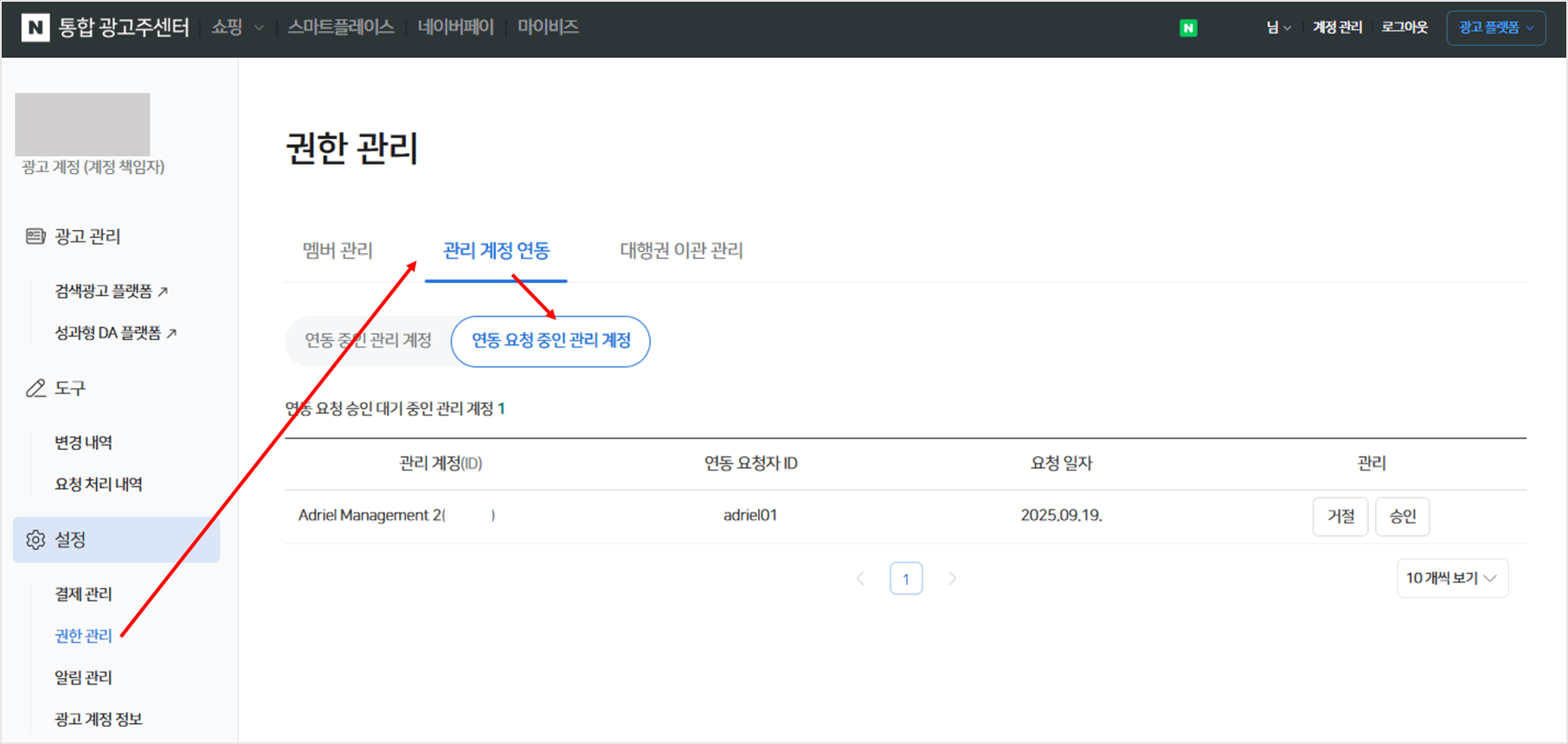
solution@adriel.ai with the Advertiser ID so the invitation can be sent.What gets imported
The connector imports the full campaign hierarchy (ad account → campaign → ad set → ad), standard performance metrics in KRW (with and without VAT), demographic and device breakdowns (age, gender, device target, hour of day, OS), and Korean e-commerce conversion events includingpurchase, addToCart, signUp, wishlist, reservation, nPay (Naver Pay), and the generic convCount.
For the complete metric list, breakdown coverage, and refresh schedule, see the Naver GFA data reference.
Troubleshooting
The status stays Pending
The status stays Pending
Adriel does not have manager access to the GFA ad account yet. In the GFA ad account, check Settings, then Permission management for a pending Adriel Management request and approve it. If no request is listed, the manual invitation from the Adriel team has not been sent yet — contact
solution@adriel.ai with the Advertiser ID.No data after the status changes
No data after the status changes
The initial sync can take up to one business day. The internal session is refreshed every two hours; if a refresh was in progress when the sync was queued, it retries on the next cycle.
EXTERNAL_SERVICE_PERMISSION_MISSING error
EXTERNAL_SERVICE_PERMISSION_MISSING error
Manager access on the GFA account has been revoked. Re-add the manager account in the GFA admin and reconnect the data source.
Related
Naver GFA data reference
Metrics, breakdowns, refresh cadence, and limits for Naver GFA.
Naver GFA FAQs
Common questions and expected behaviors for the Naver GFA data source.
How to connect Naver Search Ads
Connect Naver’s search advertising platform.
How to connect Naver Smart Store
Connect Naver’s e-commerce storefront analytics.