
Before you connect
- An Adriel account. Adriel MCP is available on all Adriel plans. Each person signs in with their own account; access can’t be shared.
- At least one teamspace with data sources assigned to it. Adriel MCP returns only data from teamspaces the member belongs to. See Teamspace settings.
- An AI assistant plan that supports custom MCP connectors. Each AI assistant sets its own limits on which plans can add custom connectors and how many. Check the plan details for each assistant under Connect Adriel MCP.
- Admin approval on team or enterprise plans only. On organization plans such as Claude Team or Enterprise and ChatGPT Business, Enterprise, or Edu, an owner or admin may need to add or allow the connector first. Individual plans, such as Claude Pro or Max, don’t need this step.
Adriel MCP is added as a custom connector in both Claude and ChatGPT. Each person connects with their own Adriel account, and the connection only returns data that account can access in Adriel.
Connect Adriel MCP
- Claude
- ChatGPT
Custom connectors are available on Claude Free, Pro, Max, Team, and Enterprise plans; Free plans are limited to one custom connector (Claude Help Center).Add Adriel MCP one of two ways. Both connect to the same server, so there’s no need to do both:
- In the Claude app. Add it as a custom connector in claude.ai or Claude Desktop. When Claude Code is signed in with the same Claude account, the connector is also available there (Claude Code docs).
- From the terminal, in Claude Code. Add it with one command, or ask Claude Code to add it. A server added this way is available in Claude Code only.
In the Claude app: Pro and Max plans
1
Open Connectors
In Claude, go to Settings > Customize > Connectors.
2
Add a custom connector
Click + Add, then Add custom connector.
3
Enter the server details
In the Add custom connector dialog, enter a name, for example 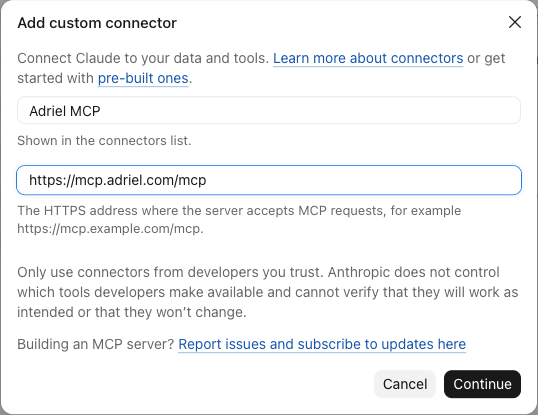
Adriel MCP, and https://mcp.adriel.com/mcp as the server URL. Click Continue.4
Confirm authentication
Keep the detected OAuth settings and finish adding the connector.
5
Sign in to Adriel
Click Connect and sign in with an Adriel account.
In the Claude app: Team and Enterprise plans
An organization owner adds the connector once for the whole organization. Each member then signs in with their own Adriel account.1
Add the connector (owner)
Go to Organization settings > Connectors and click Add. Hover over Custom, select Web, and enter a name, for example
Adriel MCP, and https://mcp.adriel.com/mcp as the server URL. Keep the detected OAuth settings and click Add.2
Connect (each member)
In Claude, go to Settings > Customize > Connectors, find the Adriel connector the owner added, and click Connect. Sign in with an Adriel account.
From the terminal, in Claude Code
If Adriel MCP was already added in the Claude app, it may already be listed: run/mcp in Claude Code to check.1
Add the server
Run the following in a terminal. Alternatively, ask Claude Code to do it, for example: “Add the Adriel MCP server at https://mcp.adriel.com/mcp.”
adriel is the server name and can be anything.2
Sign in to Adriel
Run
/mcp inside Claude Code, select the Adriel server, and follow the sign-in prompt with an Adriel account.Verify the connection
Start a new conversation and ask something only Adriel can answer, for example:Disconnect Adriel MCP
To stop an AI assistant from accessing Adriel, remove or disconnect the Adriel MCP connector in that assistant’s connector settings.Troubleshooting
The sign-in window doesn't open or fails
The sign-in window doesn't open or fails
Allow pop-ups for the AI assistant’s site and try again. On team or enterprise plans, confirm with the organization admin that custom connectors are allowed.
The wrong Adriel account is connected
The wrong Adriel account is connected
The connection uses the Adriel account that signed in. Disconnect the connector, connect again, and sign in with the correct account.
The assistant connects but finds no data
The assistant connects but finds no data
Adriel MCP only shows teamspaces the member belongs to and data sources assigned to those teamspaces. Check Teamspace settings and Permissions and access.
Related
Adriel MCP
What Adriel MCP can do, how access works, and prompt tips.
Teamspace settings
Control which members and data sources each teamspace includes.